
Info Center
Mobile banking ProCredit Mobile
A smartphone or tablet with Android 8 (or later) or iOS 16.6 (or later).
You can install ProCredit Mobile on up to 3 mobile devices by following these steps:
- Install ProCredit Mobile on the new device and select “I am already a client” in the application;
- Log in to your online banking via a computer and wait to see the QR code;
- In the ProCredit Mobile application, tap “Scan QR code” and scan the QR code displayed on your computer;
- Enter your PIN code in the application.
If your mobile device supports this feature, enable biometric login through the “Profile” – “Biometrics” menu.
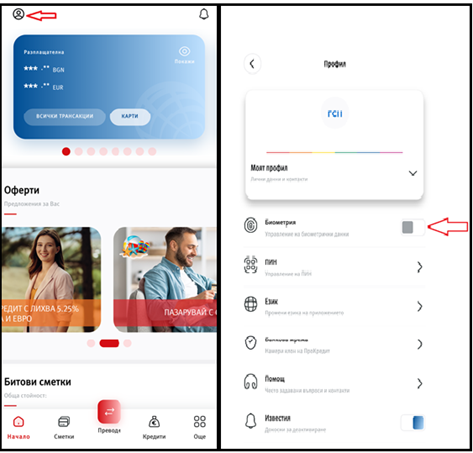
For security reasons, access will be blocked after 10 consecutive incorrect PIN entries. You can restore access to the application by using the “Forgot PIN” button:
- Tap the “Forgot PIN” button;
- Log in to your Internet Banking via a computer and wait for the QR code to appear;
- In the ProCredit Mobile application, tap “Scan QR code” and scan the QR code from your computer;
- Set a new PIN code in the application.
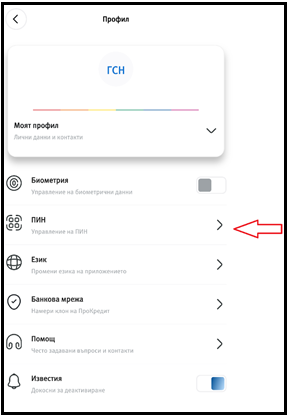
You can change your PIN code in the application through the “Profile” – “PIN Code” menu. You will need to enter your current PIN and set a new PIN for login.
Go to the “Accounts” menu in the ProCredit Mobile application, select the card (status “Inactive”) and tap “Activate”. Enter the last 4 digits of the card number and confirm via B-Trust Mobile or SMS code.
You need an active debit card to complete this process.
- Download and install the ProCredit Mobile application on your new device;
- Log in to your Internet Banking via a computer or laptop;
- Select the “My Profile” submenu from the “Customer Settings” menu;
- On the right side of the screen, you will find the option “Activate a new mobile device”;
- Select it and follow the activation steps. The system will generate a QR code, which you need to scan using the designated button in the ProCredit Mobile application;
- Complete the process by following the instructions.